The easiest way to make a Christmas card that feels personal is to turn your own photo into one with AI: pick a photo → apply a Christmas template → save it and send it. MagicBrew is a free AI Christmas card maker for iPhone — no design experience and no AI prompts needed. When it's done, text it over iMessage or WhatsApp, or post it to Instagram.

Every December, the same Christmas graphics start making the rounds in the group chat: a glowing tree, a sparkly "Merry Christmas," a snowman that's been forwarded who knows how many times. They look nice, but people scroll right past and forget them.
This year, try something different: make your Christmas card from a photo of your own. You, your family, your dog — whoever gets it will know at a glance it was made for them. This guide shows two Christmas card styles, walks you through making one in three steps, and wraps up with when to send it and Christmas wishes you can copy and paste.
Any ordinary photo can become a personalized Christmas card
Your photo doesn't need anything Christmassy in it. A shot on the lawn, in the living room, or a quick selfie all work — the template adds the tree, the snow, and the lights. Here's what two of the templates actually produce.
🎨 Cozy Holiday Collage: a vintage illustrated Christmas card
This template repaints your photo as a warm, vintage-style watercolor illustration, complete with a Christmas tree, holly, string lights, and hand-lettered "Merry Christmas." It looks a lot like the boxed cards you used to pick out at the store as a kid.
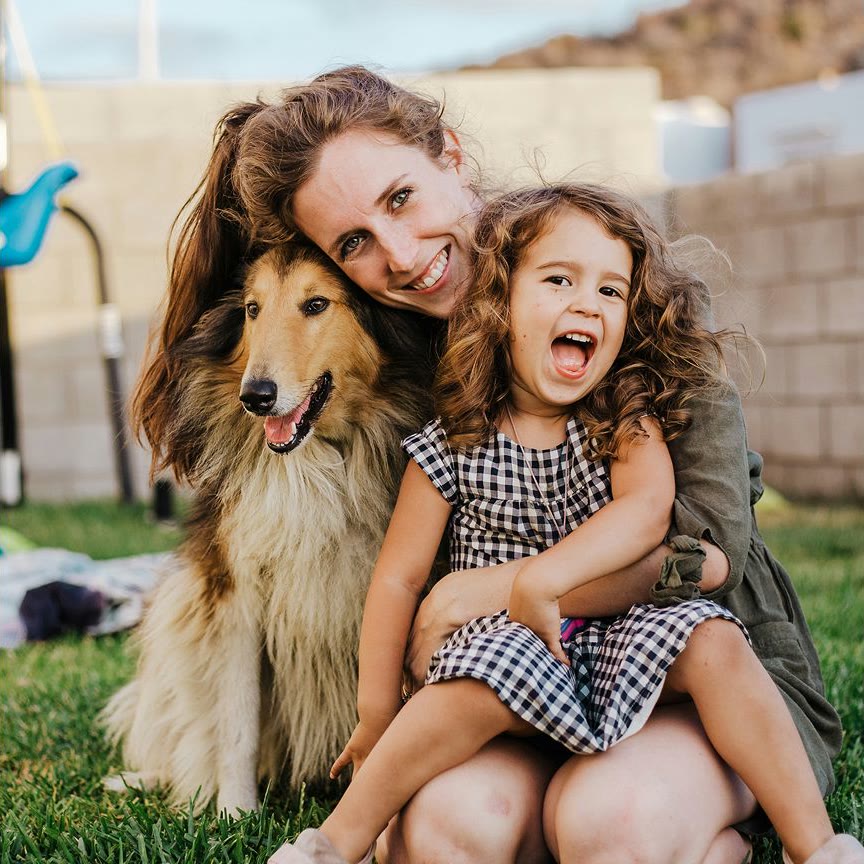
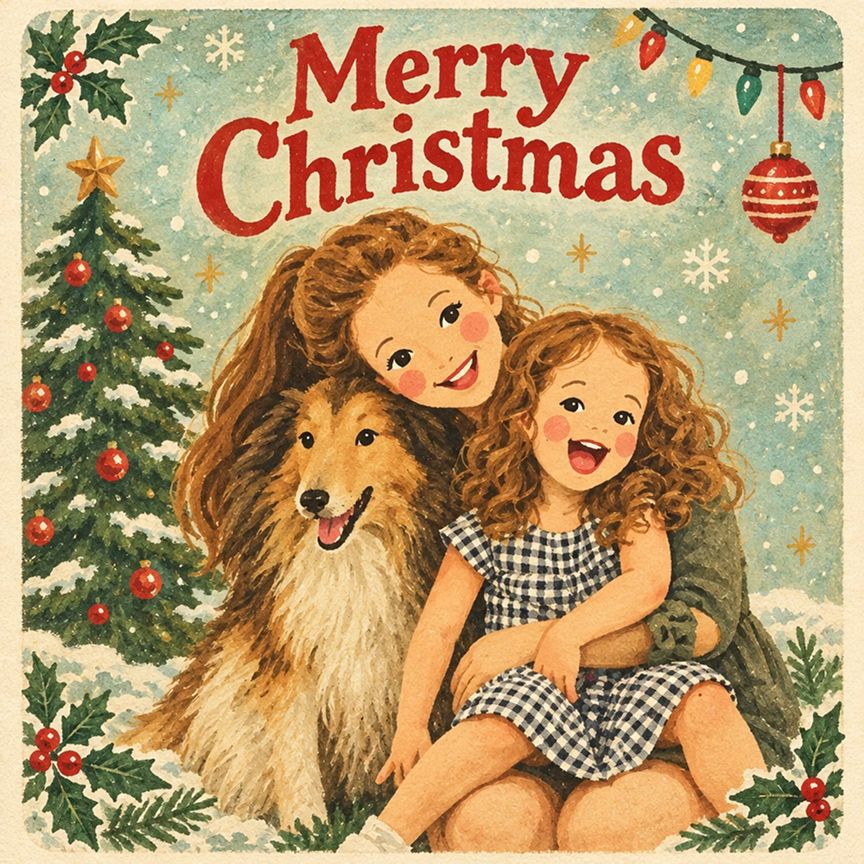

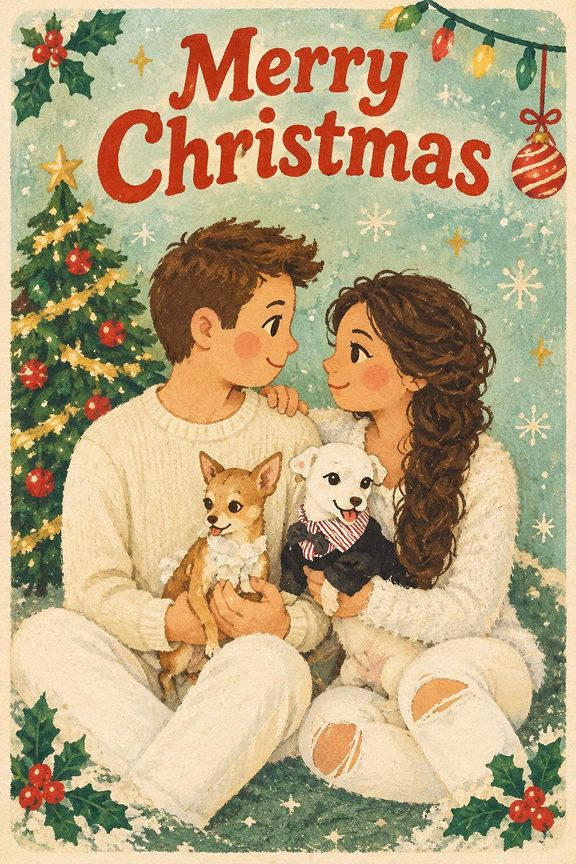
🎄 Glass Ornament Plush: put yourselves inside a Christmas ornament
This template turns the people and pets in your photo into fuzzy plush dolls and tucks them inside a clear glass ornament hanging on the tree, surrounded by presents, a snowman, and candy canes. It's an especially sweet pick for couples and families with pets.

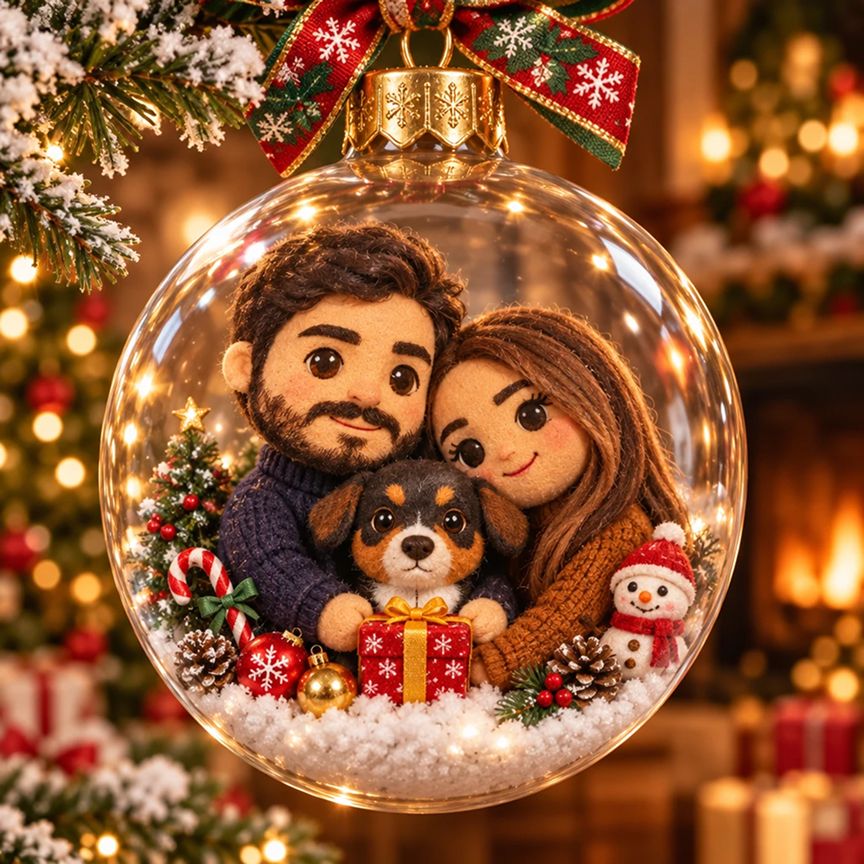
Both styles have one thing in common: you can tell who's on the card. That's the biggest difference between a Christmas card you made yourself and one you grabbed off the internet.
How do you make a Christmas card from a photo? 3 steps with AI
Making a Christmas card in MagicBrew takes three steps and about a minute or two, all on your phone. Here's how it goes:
1Pick the photo you want on your Christmas card
Open MagicBrew and choose a photo from your camera roll. Photos where faces are clear and the main subject stands out work best. A messy background doesn't matter — it gets swapped for a Christmas scene anyway.
2Apply a Christmas template
Pick a template you like from the Christmas collection, such as Cozy Holiday Collage or Glass Ornament Plush from the examples above, and tap to apply it — no prompts to type. Feel free to try a few templates on the same photo and keep your favorite.
3Save it and send it to family and friends
When the card is ready, save it to your camera roll. Then:
- iMessage / WhatsApp: text it straight to family, friends, or the group chat
- Instagram / Facebook / Messenger: share it as a Story or a post and wish everyone a merry Christmas at once
- Want a physical card? Print the saved image at a photo lab, write a few lines on the back, and mail it
Three steps later, you have a Christmas card that belongs only to you.
What photos make the best Christmas cards?
The best photos are ones that tell your story and show faces clearly. These are the easiest to get great results with:
- Family photos: send one to grandparents or relatives who live far away — they'll love seeing everyone together.
- Photos with your pet: dogs and cats are always a hit on a Christmas card. Both examples above include pets.
- Couple's photos: make it your first (or fifth) Christmas card together. It means more than anything off the rack.
- This year's photos of the kids: send them to the relatives so everyone can see how much they've grown.
- Selfies work too: the glass ornament example started as a selfie. As long as faces are clear, it'll work.
Avoid two things: faces that are too small or backlit, and frames crowded with too many people. Pick a photo where everyone is smiling, and your Christmas card is already halfway there.
When should you send your Christmas card? (Plus wishes to copy)
The best time is Christmas Eve evening (December 24) or Christmas morning (December 25). Send it too early and it gets buried under everything else in the chat; send it too late and it feels like an afterthought.
If family or friends live in another time zone, do a quick bit of math. If you're in California, 8 p.m. on Christmas Eve is already 4 a.m. Christmas morning in London — and when it's Christmas morning on the East Coast, your West Coast relatives may still be asleep. Timing the card to land on Christmas Eve or Christmas morning their time feels a lot more thoughtful. You can make it early, keep it in your camera roll, and send it when the moment's right.
A few words of your own make the card even better. Feel free to copy any of these Christmas wishes:
"We can't be home for Christmas this year, so here's a little card of us instead. Merry Christmas — we miss you!"
"Thank you for everything this year, Mom and Dad. Wishing you a merry Christmas and a healthy, happy new year!"
"Christmas number ___ together, and I'm already looking forward to the next one. Merry Christmas!"
"The best gift under the tree this year is having you next to me."
"Merry Christmas! Thanks for being there this year — here's to an even better one ahead."
"My dog wanted to say Merry Christmas too 🐶🎄"
"Thank you for a great year of working together. Wishing you a merry Christmas and a happy New Year!"
"Merry Christmas & Happy New Year! Looking forward to working with you again next year."
The card catches their eye, and your few words warm their heart — put the two together and you've sent the most thoughtful Christmas wish of the year.
"Holiday templates are updated so regularly. My Christmas and New Year videos got so many likes from friends and family!"
— MagicBrew App Store user review (4.8 stars on the App Store, 3,500+ reviews)
Once Christmas is over, New Year's is right around the corner. To turn your photos into cards for other holidays, check out AI Animated Greeting Cards: Turn Your Photos into Moving Holiday Wishes.
Frequently Asked Questions (FAQ)
Is it free to make a Christmas card with AI?
Yes, you can start for free. MagicBrew is free to download and includes free credits. If you need more generations, credit packs are available at $2.99, $5.99, $13.99, $32.99, or $82.99. It's credits-based with no subscription — you only pay for the cards you make.
What photos work best for a Christmas card?
Photos where faces are clear and the main subject stands out work best, like a family photo, a couple's photo, or a photo with your pet. A messy background is fine — the AI replaces it with a Christmas scene.
Does my photo need anything Christmassy in it?
No. Your photo doesn't need a tree or a Santa hat. A snapshot from the park, the beach, or your living room works fine — the template adds the Christmas tree, snowflakes, and lights.
Can I send the finished card over iMessage or WhatsApp?
Yes. The card is saved to your camera roll, so you can text it directly over iMessage or WhatsApp to family or a group chat, or share it to Instagram, Facebook, Messenger, or any other app.
When is the best time to send a Christmas card?
Christmas Eve evening (December 24) or Christmas morning (December 25) works best. If the person lives in a different time zone, do the math so the card arrives on Christmas Eve their time.
Can I make a good-looking Christmas card without any design skills?
Yes. MagicBrew is template-based — no design knowledge and no AI prompts required. Pick a template and the AI does the rest.
Can I make Christmas cards with MagicBrew on Android?
MagicBrew is currently available exclusively on iOS as a free download on the Apple App Store. An Android version has not been announced.
This Christmas, send a card with you on it
Download MagicBrew for free, pick a photo, apply a Christmas template, and send a personalized Christmas card to everyone you love in just a few minutes.
 Download Free on the App Store